
Only admins can change service times. Team members can see them in Settings, but can’t edit them.
The Shifts page only shows Sundays. A service time set for another day won’t appear on the rota.
Open service times
Tap Settings in the bottom navigation bar, then scroll down to Opening Hours. Each service time has its own block, such as Sunday Service, with:- An on/off switch.
- A delete button (bin icon).
- Day, Start Time and End Time.
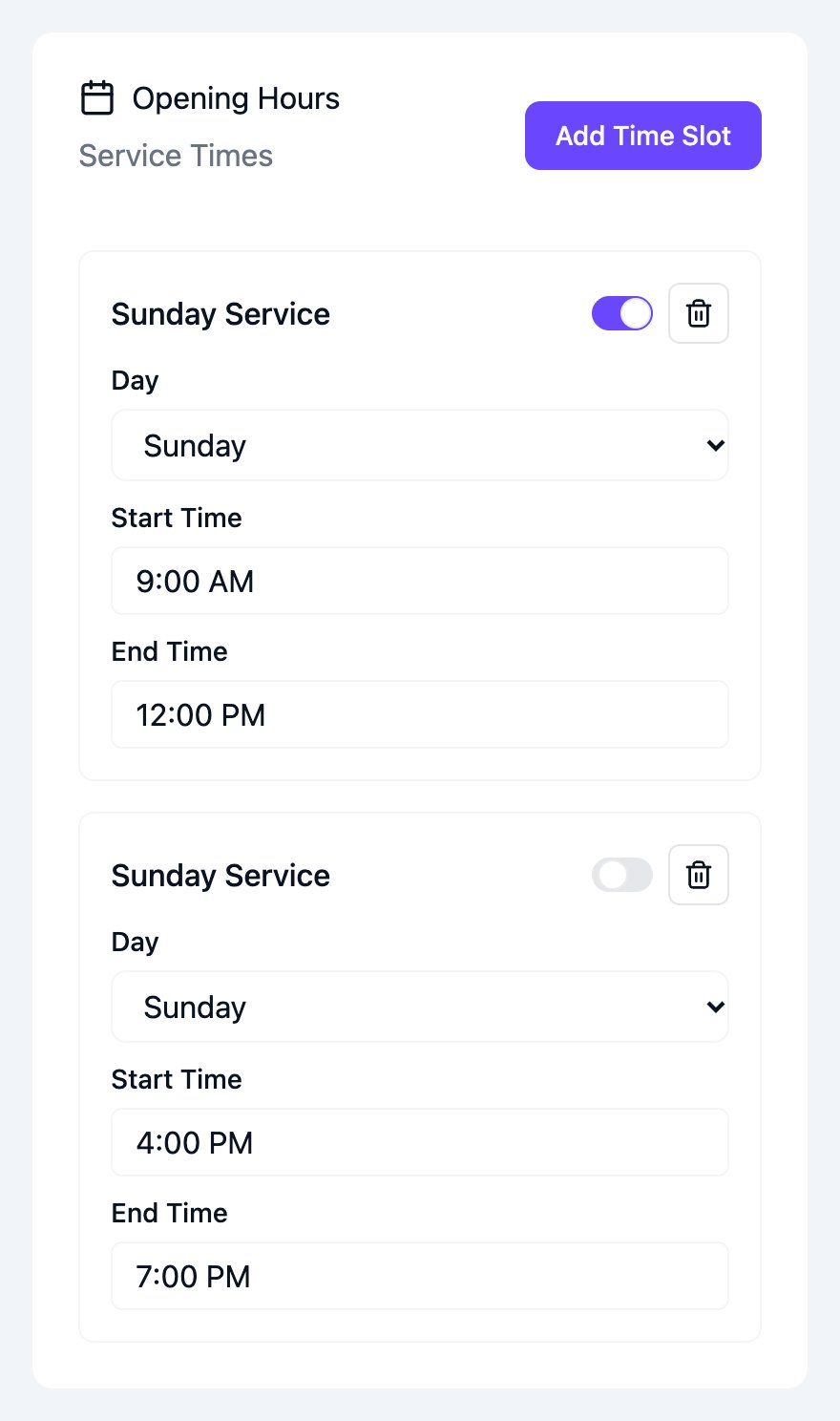
Service times in Settings
Add a service time
1
Tap Add Time Slot
Tap Add Time Slot. A new Sunday block appears, set to 9:00 AM–12:00 PM.
2
Set the times
Change Start Time and End Time. Type times in the same style as the existing ones, for example
9:00 AM or 4:00 PM.3
Tap Save Settings
Scroll to the bottom of the page and tap Save Settings.
Turn off or remove a service time
- To stop a service time appearing on the rota for now: turn off its switch.
- To remove it completely: tap its bin icon.