> ## Documentation Index
> Fetch the complete documentation index at: https://help.rotapad.com/llms.txt
> Use this file to discover all available pages before exploring further.
# View the rota
> Change the month, read shift cards, open shift details and switch to calendar view.
The **Shifts** page shows the rota for one month at a time. There's a shift for each service time on each Sunday. Tap **Shifts** in the bottom navigation bar to open it.
## Choose a month
The rota opens on the current month. To see another month, tap the month or year and pick from the list, or tap the left and right arrows to go back or forward a month.
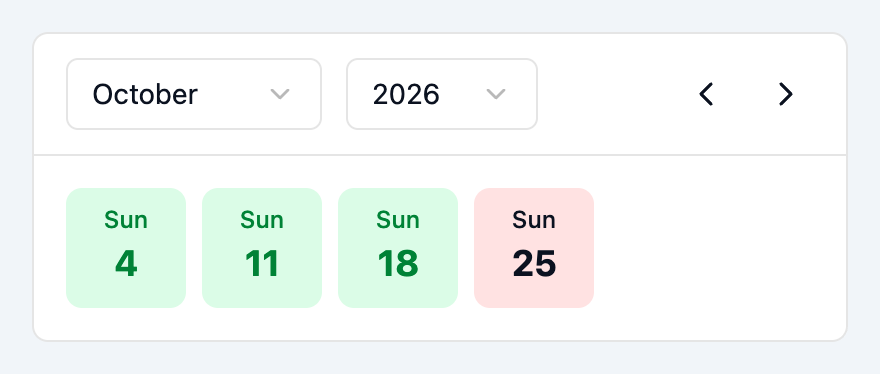
Under the month, each Sunday has its own date. The colour shows how that Sunday is staffed:
* **Green:** at least one shift that Sunday has team members on it.
* **Orange or red:** nobody is on that Sunday's shifts yet.
* **Purple:** today, if today is a Sunday.
 ## Read a shift card
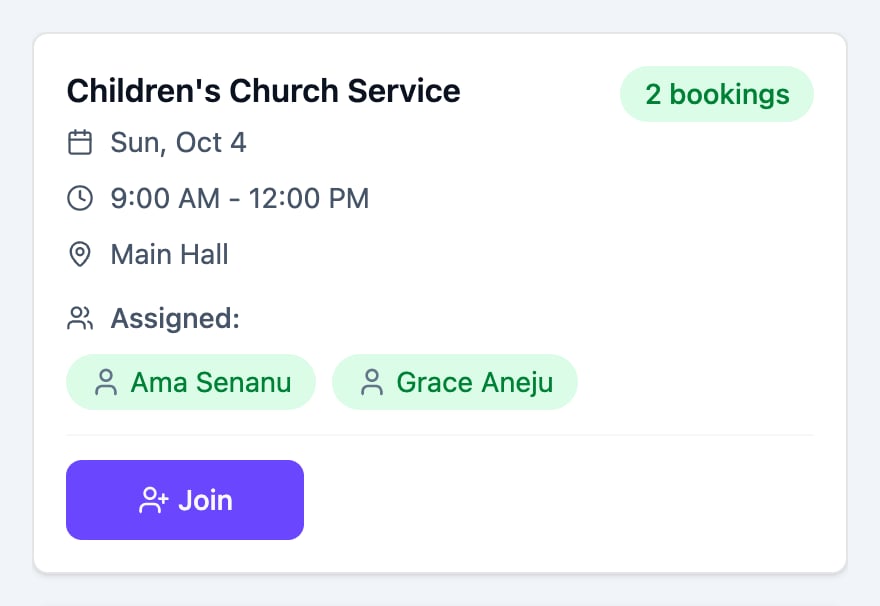
Scroll down to see a card for each shift. A card shows:
* The service name, date and time.
* How many people are on the shift, in the top-right corner. The count is green when someone is on the shift and red when nobody is.
* **Assigned:** the names of the team members on the shift.
* A **Join** button, or **Leave** if you're already on it. See [Join a shift](/shifts/join-a-shift) and [Leave a shift](/shifts/leave-a-shift).
## Read a shift card
Scroll down to see a card for each shift. A card shows:
* The service name, date and time.
* How many people are on the shift, in the top-right corner. The count is green when someone is on the shift and red when nobody is.
* **Assigned:** the names of the team members on the shift.
* A **Join** button, or **Leave** if you're already on it. See [Join a shift](/shifts/join-a-shift) and [Leave a shift](/shifts/leave-a-shift).
 ## See who's on a shift
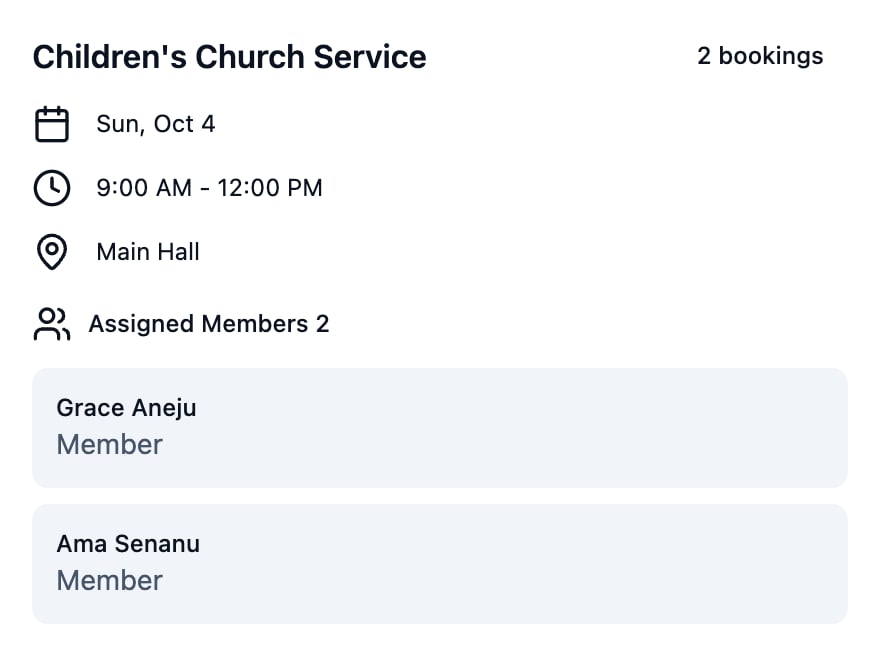
Tap the service name on a shift card to open **Shift Details**. It lists everyone on the shift with their role, and marks you with **(You)** if you're on it. Tap **X** to close it.
## See who's on a shift
Tap the service name on a shift card to open **Shift Details**. It lists everyone on the shift with their role, and marks you with **(You)** if you're on it. Tap **X** to close it.
 ## Switch to calendar view
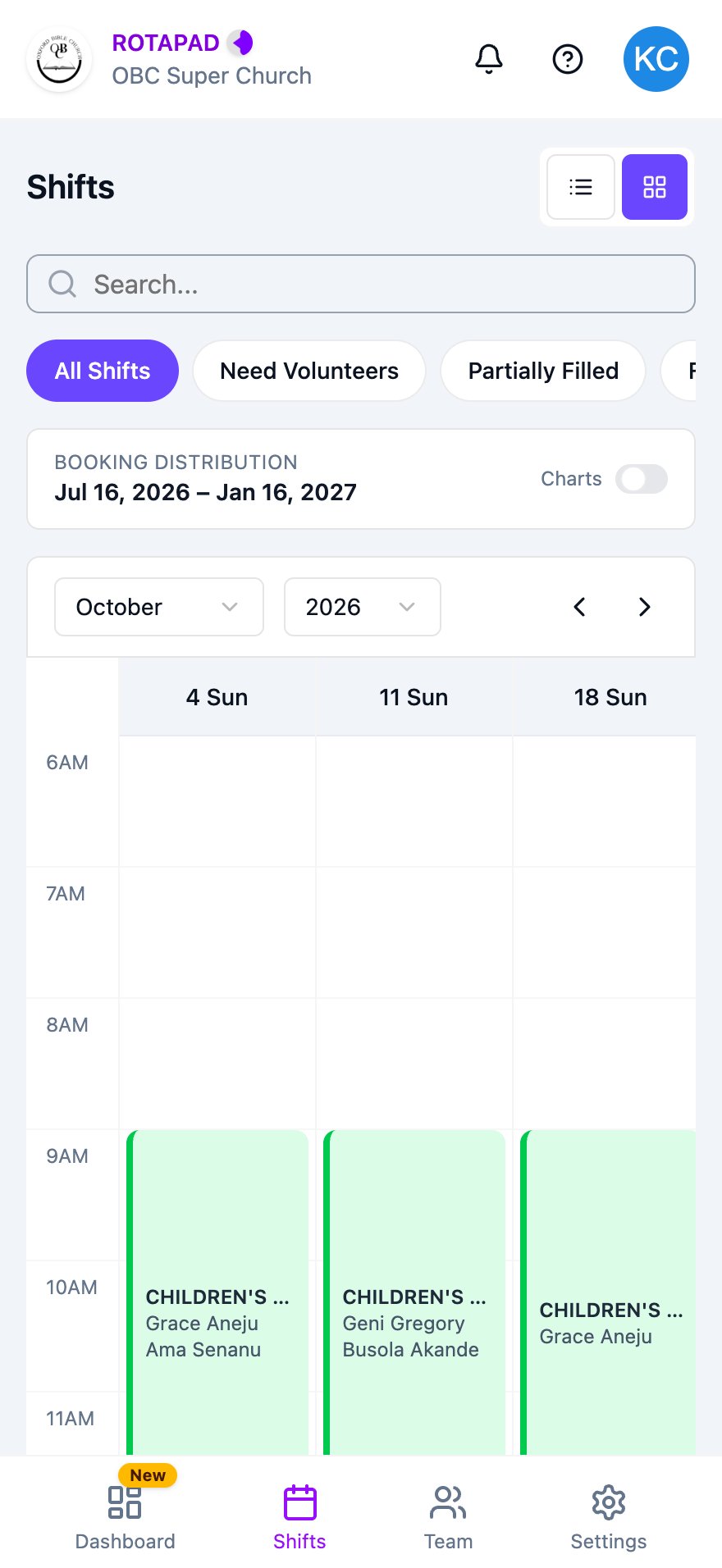
To see the month as a calendar, tap the grid icon at the top right, next to the list icon. Each Sunday is a column and each shift is a block at its time of day. The blocks use the same colours as the dates: green when someone is on the shift, and orange or red when nobody is.
Swipe sideways to see more Sundays. Tap a block to open its details. To go back to the list, tap the list icon.
## Switch to calendar view
To see the month as a calendar, tap the grid icon at the top right, next to the list icon. Each Sunday is a column and each shift is a block at its time of day. The blocks use the same colours as the dates: green when someone is on the shift, and orange or red when nobody is.
Swipe sideways to see more Sundays. Tap a block to open its details. To go back to the list, tap the list icon.
 This documentation is built and hosted on [Mintlify](https://mintlify.com), a developer documentation platform.