> ## Documentation Index
> Fetch the complete documentation index at: https://help.rotapad.com/llms.txt
> Use this file to discover all available pages before exploring further.
# Find shifts that need team members
> Spot shifts with nobody on them, filter shifts by how full they are, or search for a team member's shifts.
The **Shifts** page has filters and a search box to help you find the right shift. Tap **Shifts** in the bottom navigation bar to start.
## Spot shifts with nobody on them
With **All Shifts** selected and nothing in the search box, look for:
* **A red count on a shift card:** nobody is on that shift yet.
* **A red or orange Sunday date:** nobody is on any of that Sunday's shifts yet.
Scroll through the month, or change the month at the top of the list. See [View the rota](/shifts/view-the-rota) for more on reading the page.
## Filter by how full a shift is
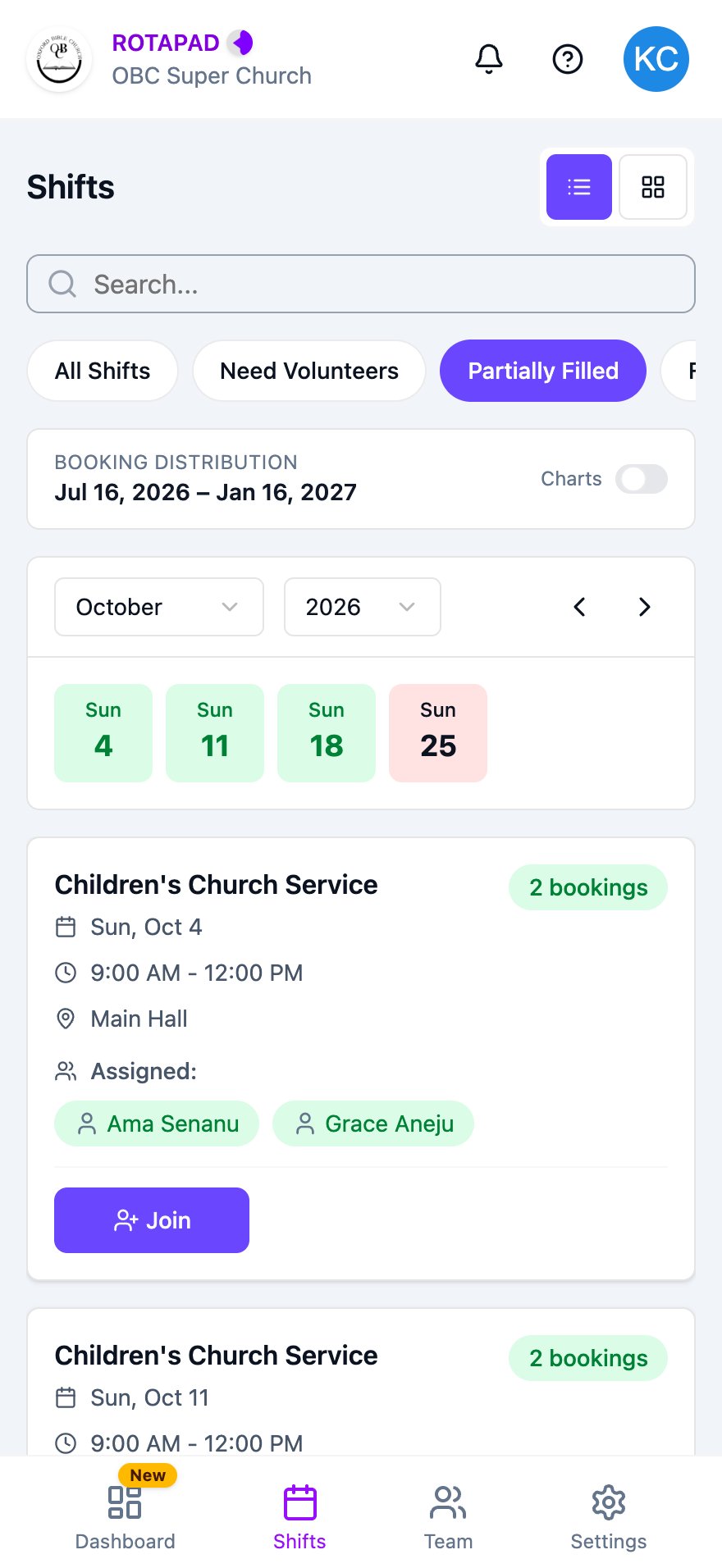
The filter buttons are under the search box. Swipe them sideways to see them all.
* **All Shifts:** every shift. This is the default.
* **Partially Filled:** shifts that have some team members but still have space.
* **Fully Staffed:** shifts that are full.
When a filter is on, Sundays with no matching shifts are hidden from the list, and their dates turn red. Tap **All Shifts** to see everything again.
 ## Search for a team member's shifts
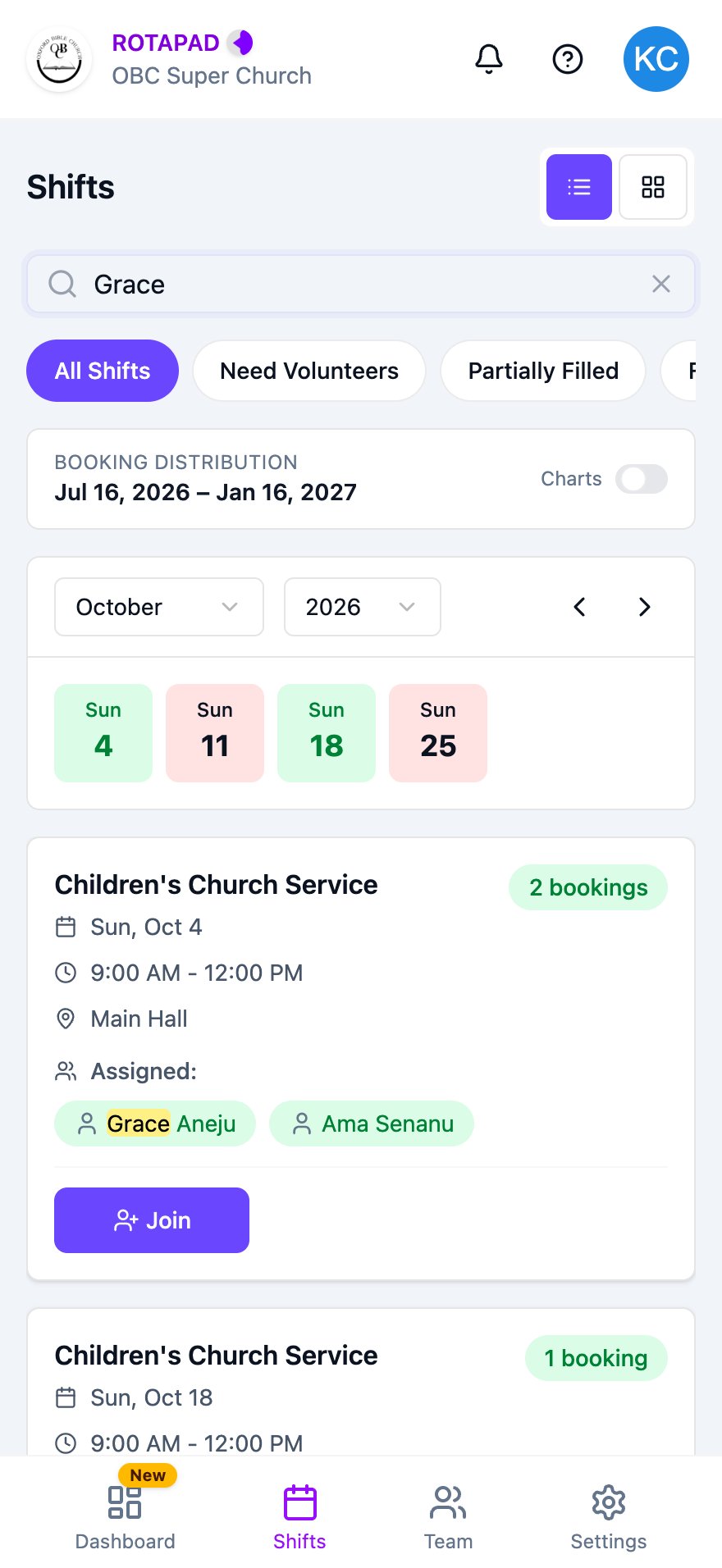
Type a team member's first or last name in the search box. The list shows only shifts with that person on them, and highlights their name. Sundays where they aren't on a shift turn red. Search for your own name to see all your shifts.
To clear the search, tap **X** in the search box.
## Search for a team member's shifts
Type a team member's first or last name in the search box. The list shows only shifts with that person on them, and highlights their name. Sundays where they aren't on a shift turn red. Search for your own name to see all your shifts.
To clear the search, tap **X** in the search box.
 Search only looks at who's on a shift, so shifts with nobody on them don't appear in search results. If nothing matches, no shifts are shown.
You can use a filter and search together, for example to see the shifts one person is on that aren't full yet.
This documentation is built and hosted on [Mintlify](https://mintlify.com), a developer documentation platform.
Search only looks at who's on a shift, so shifts with nobody on them don't appear in search results. If nothing matches, no shifts are shown.
You can use a filter and search together, for example to see the shifts one person is on that aren't full yet.
This documentation is built and hosted on [Mintlify](https://mintlify.com), a developer documentation platform.