> ## Documentation Index
> Fetch the complete documentation index at: https://help.rotapad.com/llms.txt
> Use this file to discover all available pages before exploring further.
# Set service times
> Choose the service times that create shifts on the rota.
Only admins can change service times. Team members can see them in **Settings**, but can't edit them.
Service times decide which shifts appear on the rota. Each service time that's switched on becomes a shift on every Sunday, which team members can then join.
The **Shifts** page only shows Sundays. A service time set for another day won't appear on the rota.
## Open service times
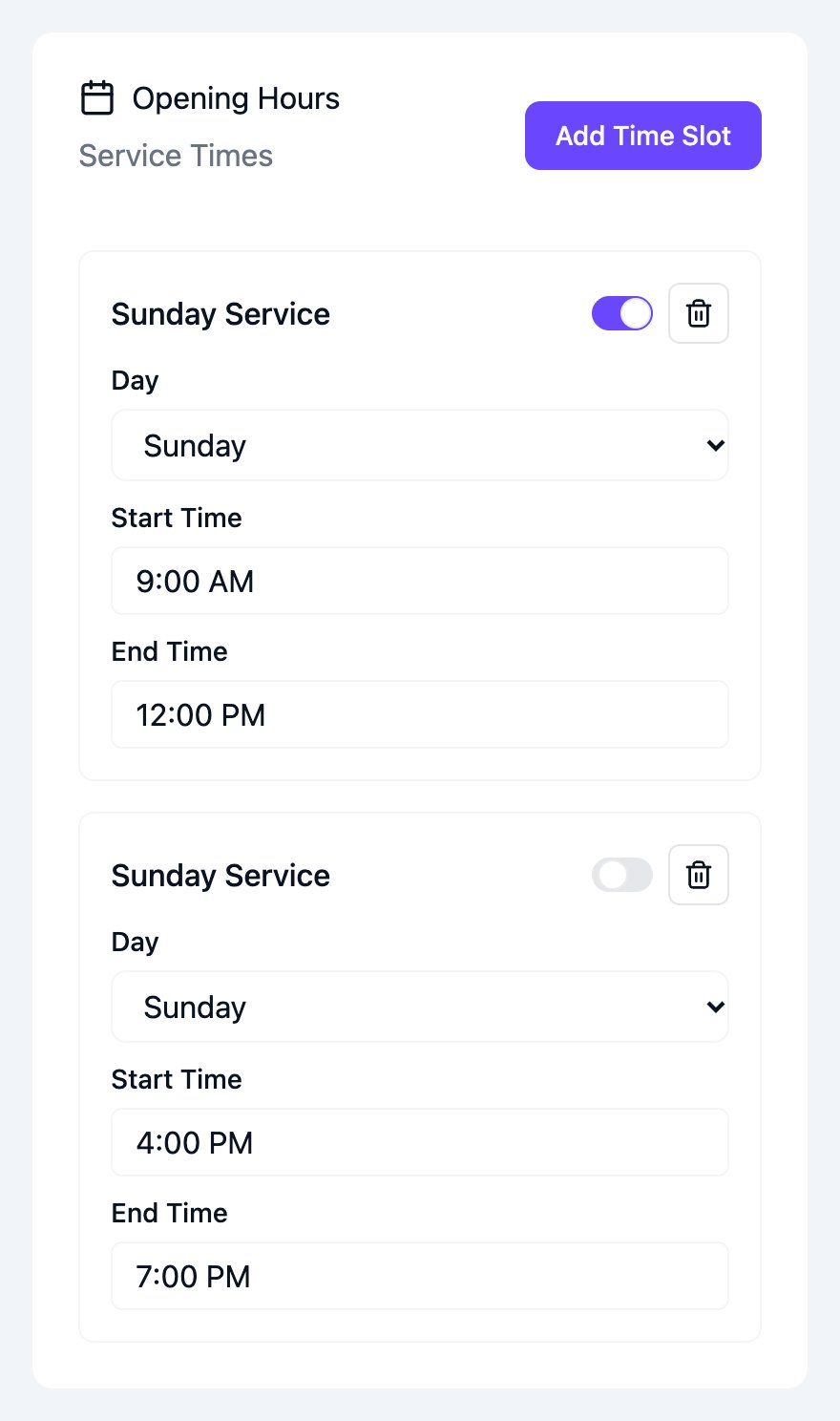
Tap **Settings** in the bottom navigation bar, then scroll down to **Opening Hours**. Each service time has its own block, such as **Sunday Service**, with:
* An on/off switch.
* A delete button (bin icon).
* **Day**, **Start Time** and **End Time**.
 ## Add a service time
Tap **Add Time Slot**. A new Sunday block appears, set to 9:00 AM–12:00 PM.
Change **Start Time** and **End Time**. Type times in the same style as the existing ones, for example `9:00 AM` or `4:00 PM`.
Scroll to the bottom of the page and tap **Save Settings**.
## Turn off or remove a service time
* **To stop a service time appearing on the rota for now:** turn off its switch.
* **To remove it completely:** tap its bin icon.
Then tap **Save Settings**.
A shift only appears on the rota if it starts inside a service time that's switched on. If you change a service time's hours, turn it off or remove it, any shifts already booked in it disappear from the rota, including who's on them. They come back if you set the service time back.
This documentation is built and hosted on [Mintlify](https://mintlify.com), a developer documentation platform.
## Add a service time
Tap **Add Time Slot**. A new Sunday block appears, set to 9:00 AM–12:00 PM.
Change **Start Time** and **End Time**. Type times in the same style as the existing ones, for example `9:00 AM` or `4:00 PM`.
Scroll to the bottom of the page and tap **Save Settings**.
## Turn off or remove a service time
* **To stop a service time appearing on the rota for now:** turn off its switch.
* **To remove it completely:** tap its bin icon.
Then tap **Save Settings**.
A shift only appears on the rota if it starts inside a service time that's switched on. If you change a service time's hours, turn it off or remove it, any shifts already booked in it disappear from the rota, including who's on them. They come back if you set the service time back.
This documentation is built and hosted on [Mintlify](https://mintlify.com), a developer documentation platform.