> ## Documentation Index
> Fetch the complete documentation index at: https://help.rotapad.com/llms.txt
> Use this file to discover all available pages before exploring further.
# Edit or remove a team member
> Change a team member's details, role or active status, or remove them.
Only admins can edit or remove team members. Everyone can see the **Team** page.
## Find a team member
Tap **Team** in the bottom navigation bar. Search by name, or use the filters under the search box:
* **All:** everyone on the team.
* **Available:** active team members. They have a green dot.
* **Inactive:** team members who've been set as inactive. They have a red dot.
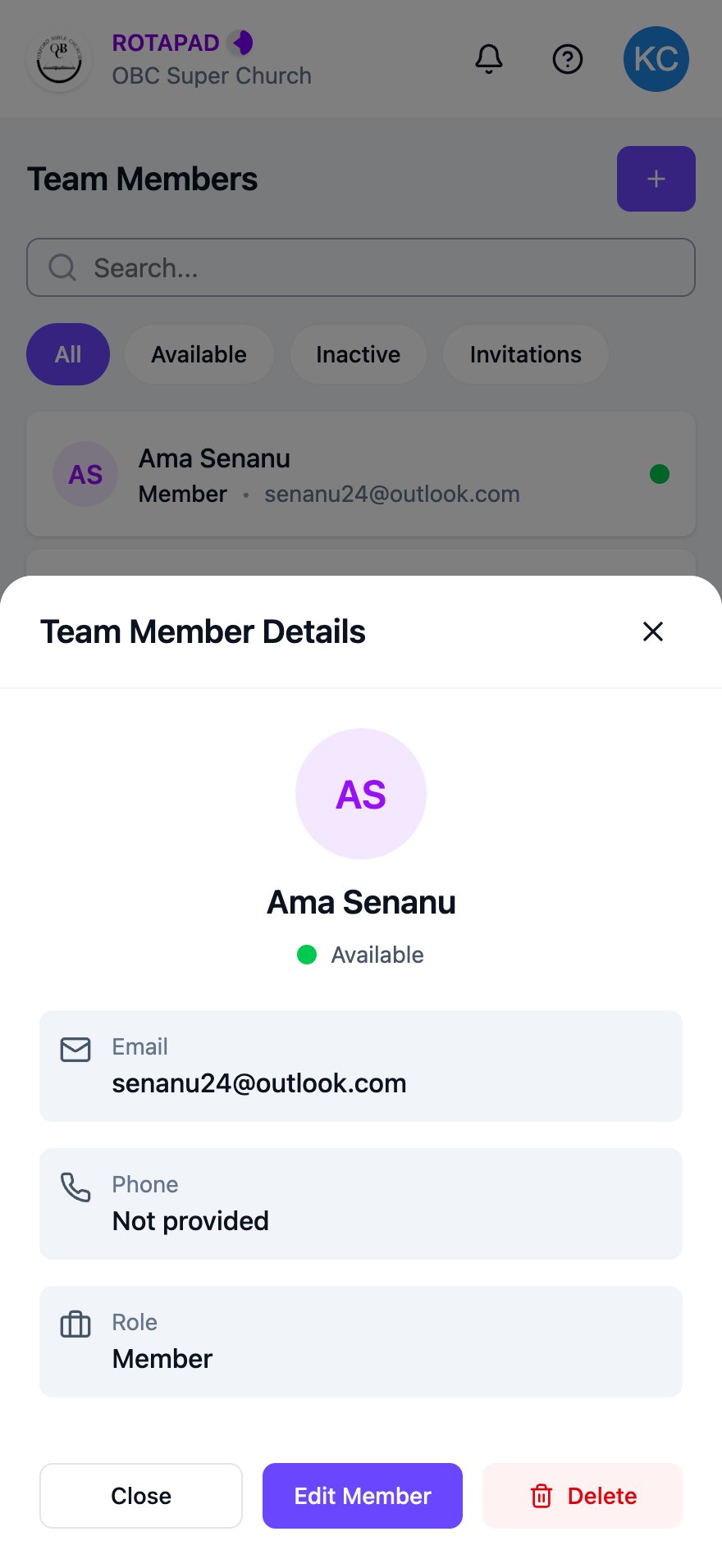
Tap a team member to open **Team Member Details**, with their email, phone number and role.
 ## Edit a team member
In **Team Member Details**, tap **Edit Member**.
Change their **First Name**, **Last Name**, **Phone Number** or **Role**.
To mark someone as inactive, turn off **Set Active**. Turn it back on to make them active again.
Tap **Save Changes**. A message at the top of the screen confirms the update.
Don't change a team member's **Email** here. OBC Rotapad matches team members to their sign-in account by email address, so changing it here breaks the link. OBC Rotapad has no way to change the email address someone signs in with.
## Remove a team member
In **Team Member Details**, tap **Delete**.
Your phone asks "Are you sure you want to delete this team member?" Tap **OK** to remove them.
Deleting a team member removes them from the team and deletes their OBC Rotapad account, so they can no longer sign in. To add them back, [invite them again](/admins/invite-a-team-member).
This documentation is built and hosted on [Mintlify](https://mintlify.com), a developer documentation platform.
## Edit a team member
In **Team Member Details**, tap **Edit Member**.
Change their **First Name**, **Last Name**, **Phone Number** or **Role**.
To mark someone as inactive, turn off **Set Active**. Turn it back on to make them active again.
Tap **Save Changes**. A message at the top of the screen confirms the update.
Don't change a team member's **Email** here. OBC Rotapad matches team members to their sign-in account by email address, so changing it here breaks the link. OBC Rotapad has no way to change the email address someone signs in with.
## Remove a team member
In **Team Member Details**, tap **Delete**.
Your phone asks "Are you sure you want to delete this team member?" Tap **OK** to remove them.
Deleting a team member removes them from the team and deletes their OBC Rotapad account, so they can no longer sign in. To add them back, [invite them again](/admins/invite-a-team-member).
This documentation is built and hosted on [Mintlify](https://mintlify.com), a developer documentation platform.