> ## Documentation Index
> Fetch the complete documentation index at: https://help.rotapad.com/llms.txt
> Use this file to discover all available pages before exploring further.
# Invite a team member
> Add someone to the team and track pending invitations.
Only admins can add team members.
Add someone to the team, and they get an email inviting them to set up their account. Once they accept, they can sign in, see the rota and join shifts.
Tap **Team** in the bottom navigation bar, then tap **+** at the top right.
* **First Name**, **Last Name** and **Email** (required). Use the email address they'll sign in with.
* **Phone Number** (optional).
* **Role:** **Member** or **Admin**. This is the role shown next to their name on the **Team** page.
* **Set Active:** on by default. If you turn it off, they're shown as inactive on the **Team** page. See [Edit or remove a team member](/admins/manage-team-members).
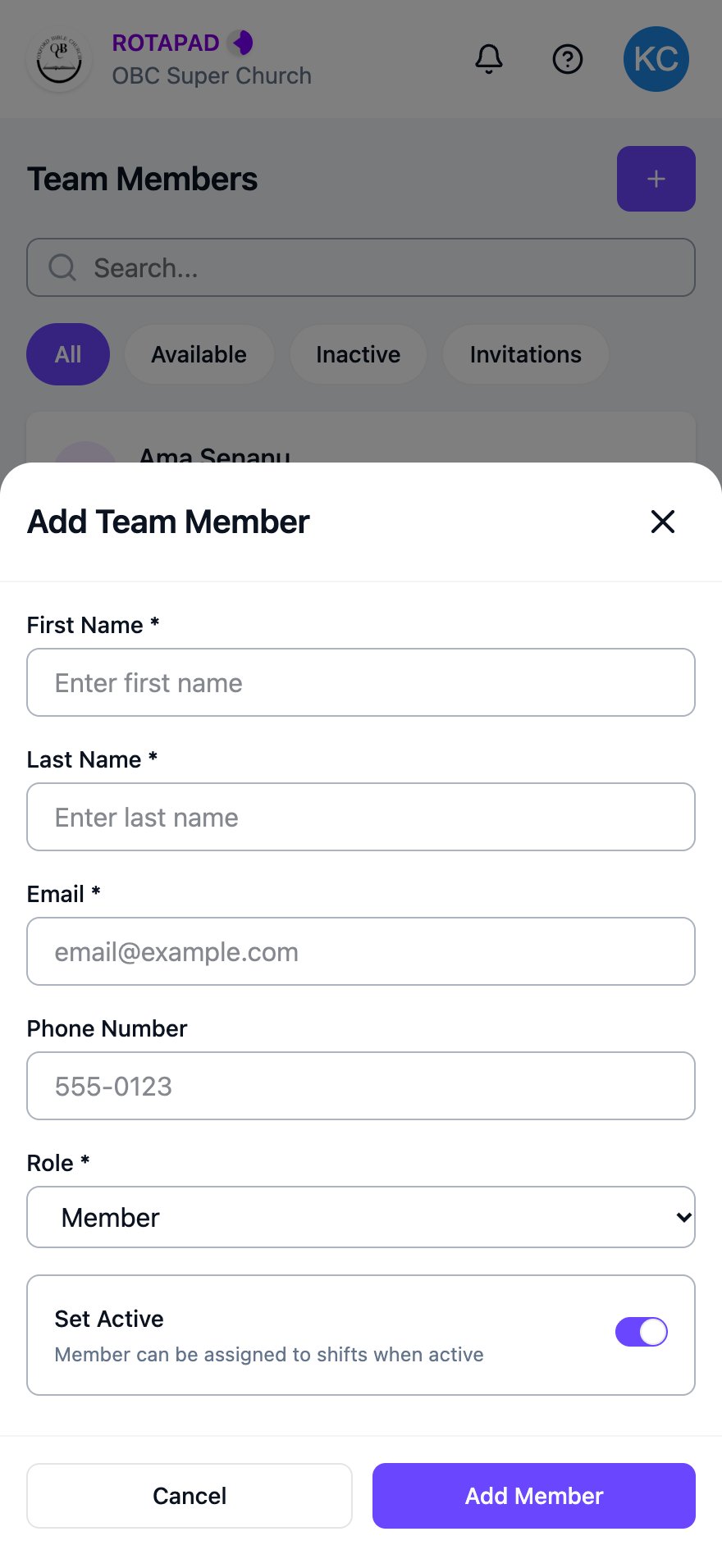 Tap **Add Member**. A message at the top of the screen confirms they've been added.
## What happens next
The new team member gets an invitation email with a link to set up their account. Send them to [Accept your invitation](/getting-started/accept-your-invitation) if they need help.
## Check pending invitations
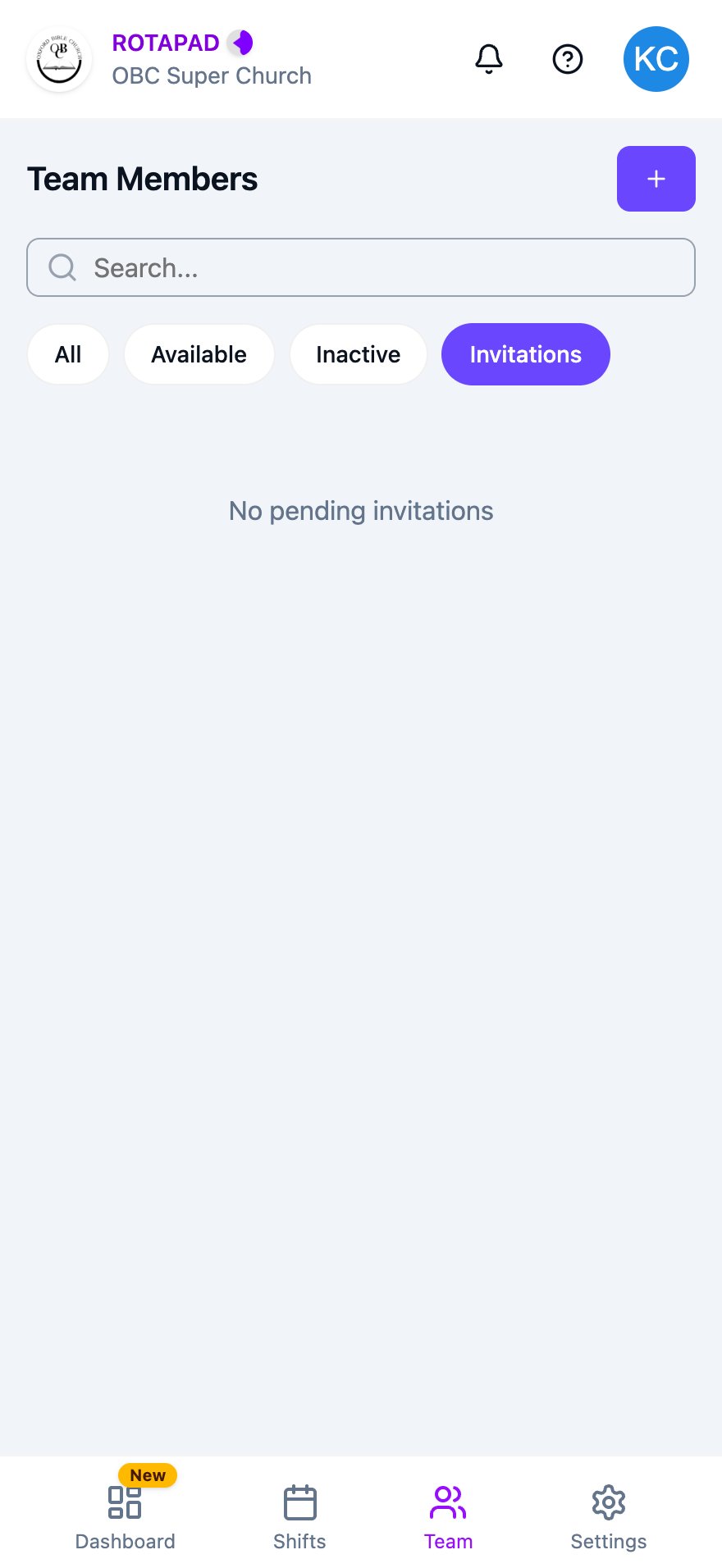
On the **Team** page, tap **Invitations** to see people who haven't accepted yet. Each invitation shows the email address, the role, when it was sent and its status. If nobody is waiting, you see **No pending invitations**.
Tap **Add Member**. A message at the top of the screen confirms they've been added.
## What happens next
The new team member gets an invitation email with a link to set up their account. Send them to [Accept your invitation](/getting-started/accept-your-invitation) if they need help.
## Check pending invitations
On the **Team** page, tap **Invitations** to see people who haven't accepted yet. Each invitation shows the email address, the role, when it was sent and its status. If nobody is waiting, you see **No pending invitations**.
 ## Common problems
### They didn't get the invitation
Ask them to check their spam or junk folder. Check under **Invitations** that you used the right email address.
### The invitation link has expired
Invite them again: tap **+** on the **Team** page and add them with the same email address.
This documentation is built and hosted on [Mintlify](https://mintlify.com), a developer documentation platform.
## Common problems
### They didn't get the invitation
Ask them to check their spam or junk folder. Check under **Invitations** that you used the right email address.
### The invitation link has expired
Invite them again: tap **+** on the **Team** page and add them with the same email address.
This documentation is built and hosted on [Mintlify](https://mintlify.com), a developer documentation platform.